分享工具条
这个功能是我在“Wordpress大学”看到的,第一眼看到就非常喜欢,像把其剽窃下来,无奈,一直没有时间,正好今天下午有空,索性把他扒下来,装载到我的博客上,帅呆了,满足感100%,哈哈! 工具条功能还是非常全面的,而且样子也很好看:
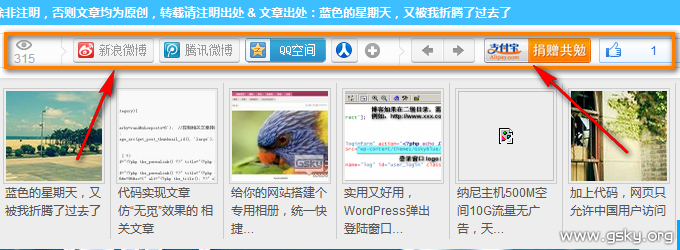
实现也面简单的,当然,我是直接拿“大学”的css,几乎没改,只是把图片链接折腾了一下,换到了BAE,速度怎一个快字了得
把下方代码贴到你想显示工具条的位置:
<div id="share_toolbar_wrapper" style="position: static; top: auto; z-index: 9999;"> <div id="share_toolbar"> <div class="stb_group" id="stb_article_view" title="本文围观次数"> <span id="stb_article_view_icon"></span> <span id="stb_view_count"><?php post_views(' ', ' '); ?></span> </div> <div class="stb_divide"></div> <div data="{'url':'<?php the_permalink() ?>'}" class="bdshare_t bds_tools get-codes-bdshare stb_group stb_share_buttons" id="bdshare"> <a href="javascript:void(0);" id="stb_btn_weibo" class="bds_tsina" title="分享到新浪微博"></a> <a href="javascript:void(0);" id="stb_btn_tqq" post_url="" class="bds_tqq" title="分享到腾讯微博"></a> <a href="javascript:void(0);" id="stb_btn_qzone" class="bds_qzone" title="分享到QQ空间"></a> <a href="javascript:void(0);" id="stb_btn_renren_small" class="bds_renren" title="分享到人人网"></a> <span id="stb_btn_more" class="bds_more"><span id="stb_sbtn_more_icon"></span></span> <a href="javascript:void(0);" class="shareCount"></a> </div> <div class="stb_divide"></div> <div class="stb_share_buttons stb_group"> <!-- 上一篇 --><a id="stb_btn_prev"<?php previous_post_link('%link'); ?></a> <!-- 下一篇 --><a id="stb_btn_next"<?php next_post_link('%link'); ?></a> </div> <div class="stb_group_right"> <div class="stb_like_btn" id="alipay_btn"><a href="https://me.alipay.com/gsky" target="_blank" title="捐助作者,与您共勉">.</a></div> <div class="bdlikebutton stb_like_btn bdlikebutton-blue bdlikebutton-small bdlikebutton-small-blue"> <div class="bdlikebutton-inner"> <!-- 处理百度like按钮点击和like数量 --> <span class="bdlikebutton-add"><div class="bdlikebutton"></div></span> <div class="bdlikebutton-count"><script id="bdlike_shell"></script> <script>var bdShare_config = {"type":"small","color":"blue","uid":"4520644"}; document.getElementById("bdlike_shell").src="http://bdimg.share.baidu.com/static/js/like_shell.js?t=" + Math.ceil(new Date()/3600000);</script> </div></div></div> </div> </div>
分享工具条代码使用注意事项:
绿色标注的是文章点击次数代码,根据个人设置,替换文章点击统计
黄色标注的是支付宝收款主页链接,如果还没有?可以到这里申请一个
蓝色标注的百度喜欢按钮,替换为自己的就可以了,喜欢按钮获取地址
添加好代码后,剩下的工作就是添加css了,下方css来自“Wordpress大学”
CSS样式代码如下:
/*分享工具条*/ #share_toolbar{background:none repeat scroll 0 0 #FCFCFC;border:1px solid #DDDDDD;border-radius:5px 5px 5px 5px;height:33px;line-height:33px;width:700px;_display:none;} #share_toolbar_wrapper{background:none repeat scroll 0 0 #FFFFFF;padding-top:8px;} #stb_article_view{width:70px;} #stb_article_view #stb_article_view_icon{background:url(http://bcs.duapp.com/picsky/share.gif) no-repeat scroll 0 0 transparent;display:block;height:14px;margin:3px auto 1px;width:18px;} #stb_article_view span{color:#AAAAAA;display:block;font-family:"Helvetica Neue",Helvetica,Arial,sans-serif;font-size:11px;text-align: center;line-height:12px;margin:0 5px;} .stb_group,.stb_divide{display:block;float:left;} .stb_divide{background:url(http://bcs.duapp.com/picsky/share.gif) no-repeat scroll 1px -19px transparent;height:33px;width:9px;} .stb_submenu_link{position:relative;} .stb_submenu_box{-moz-border-bottom-colors:none;-moz-border-left-colors:none;-moz-border-right-colors:none;-moz-border-top-colors:none;background:none repeat scroll 0 0 #FCFCFC;border-color:-moz-use-text-color #DDDDDD #DDDDDD;border-image:none;border-right:1px solid #DDDDDD;border-style:none solid solid;border-width:0 1px 1px;display:none;padding:10px;position:absolute;top:34px;} .stb_share_buttons a{background:url(http://bcs.duapp.com/picsky/share.gif) repeat scroll 0 0 transparent !important;display:block;float:left;height:25px !important;margin:4px 0 0 5px;text-indent:-99999px;width:81px;} #share_toolbar .stb_share_buttons a:hover{margin-top:3px !important;} #stb_btn_weibo{background-position:0 -57px !important;padding:0;} #stb_btn_weibo_small{background-position:-83px -57px !important;padding:0;width:27px;} #stb_btn_tqq{background-position:0 -83px !important;padding:0;} #stb_btn_tqq_small{background-position:-83px -83px !important;padding:0;width:27px;} #stb_btn_qzone{background-position:0 -135px !important;padding:0;} #stb_btn_qzone_small{background-position:-83px -135px !important;padding:0;width:27px;} #stb_btn_renren{background-position:0 -109px !important;padding:0;} #stb_btn_renren_small{background-position:-83px -109px !important;padding:0;width:27px;} .stb_share_buttons_small{left:-30px;width:150px;} .stb_share_buttons_small a,#stb_sbtn_more_icon{background:url(http://bcs.duapp.com/picsky/share.gif) repeat scroll 0 0 transparent;display:block;float:left;height:16px;margin:1px 0 0 3px;text-indent:-99999px;width:16px;} .stb_share_buttons_small a:hover{margin-top:0;} #stb_btn_more{background:none repeat scroll 0 0 transparent !important;display:block;float:left;height:33px;margin:0 0 0 3px;padding:0;width:25px;} #stb_sbtn_more_icon{background-position:-20px 0 !important;margin-top:9px;} #stb_btn_prev,#stb_btn_next{background-position:-9px -24px !important;width:33px;} #stb_btn_next{background-position:-42px -24px !important;margin-left:0;width:32px !important;} .stb_group_right{float:right;height:33px;width:205px;overflow:hidden;} .stb_like_btn{float:left;margin:4px 5px 0 0;} #stb_like_gplus{margin-right:-20px;margin-top:7px;} #alipay_btn a{float:left;padding:0;width:107px;background:url(http://bcs.duapp.com/picsky/alipay.png) no-repeat;color:#CBCBCD} #alipay_btn a:hover{margin-top:-1px;} .bdlikebutton{float:right;margin:4px 5px 0 0;} .stb_share_buttons .shareCount{width:1px;} #bdshare .shareCount{background:none repeat scroll 0 center transparent;color:#5895BE;margin-top:8px;text-indent:0;} #share_toolbar #bdshare .shareCount:hover{margin-top:8px !important;} #bdshare{margin-right:5px;} @media screen and (min-width:1260px) and (max-device-width:1340px){#wrap-right{width:234px} } @media screen and (min-width:1340px){#wrap-right{width:320px;} .comment-list .s_r{width:85%;} #h_control li{padding:5px 25px 5px 10px;} } @media screen and (max-width:1260px){#wrap-right{display:none;} }
css样式代码注意事项:
绿色标注的为常量按钮,已经存放在了百度BAE,请下载后存放在自己的空间,并修改绿色标注的图片地址
黄色标注为支付宝收款按钮,请下载后存放在自己的空间,并修改黄色标注的图片地址
强烈建议您修改图片默认地址,天空团 不保证图片可以永久使用
完成了这些操作并保存后,赶快看看你的添加分享工具条的地方吧,效果是不是很棒呢?